How to choose a gaming monitor: refresh rate, panel type, response time, resolution and HDR
The monitor is the last stop for everything you see in a game: however powerful your graphics card is, a panel that cannot keep up with the frames or that smears motion wastes that power. The right choice starts with thinking about refresh rate, panel type, resolution and the number of frames your graphics card can actually produce, all together.
In short
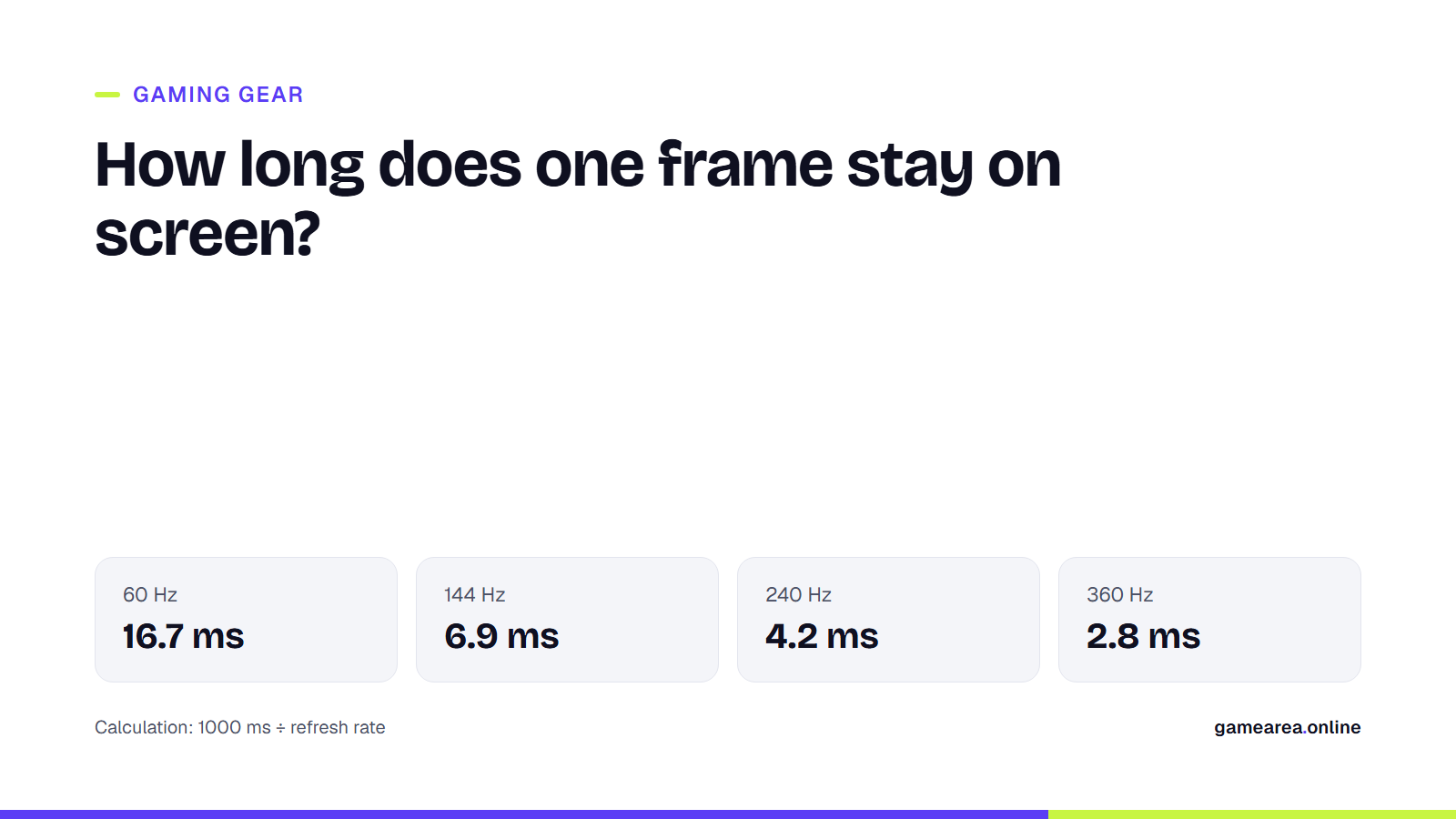
- The higher the refresh rate (Hz), the shorter each frame stays on screen: 16.7 ms at 60 Hz drops to 6.9 ms at 144 Hz and 4.2 ms at 240 Hz.
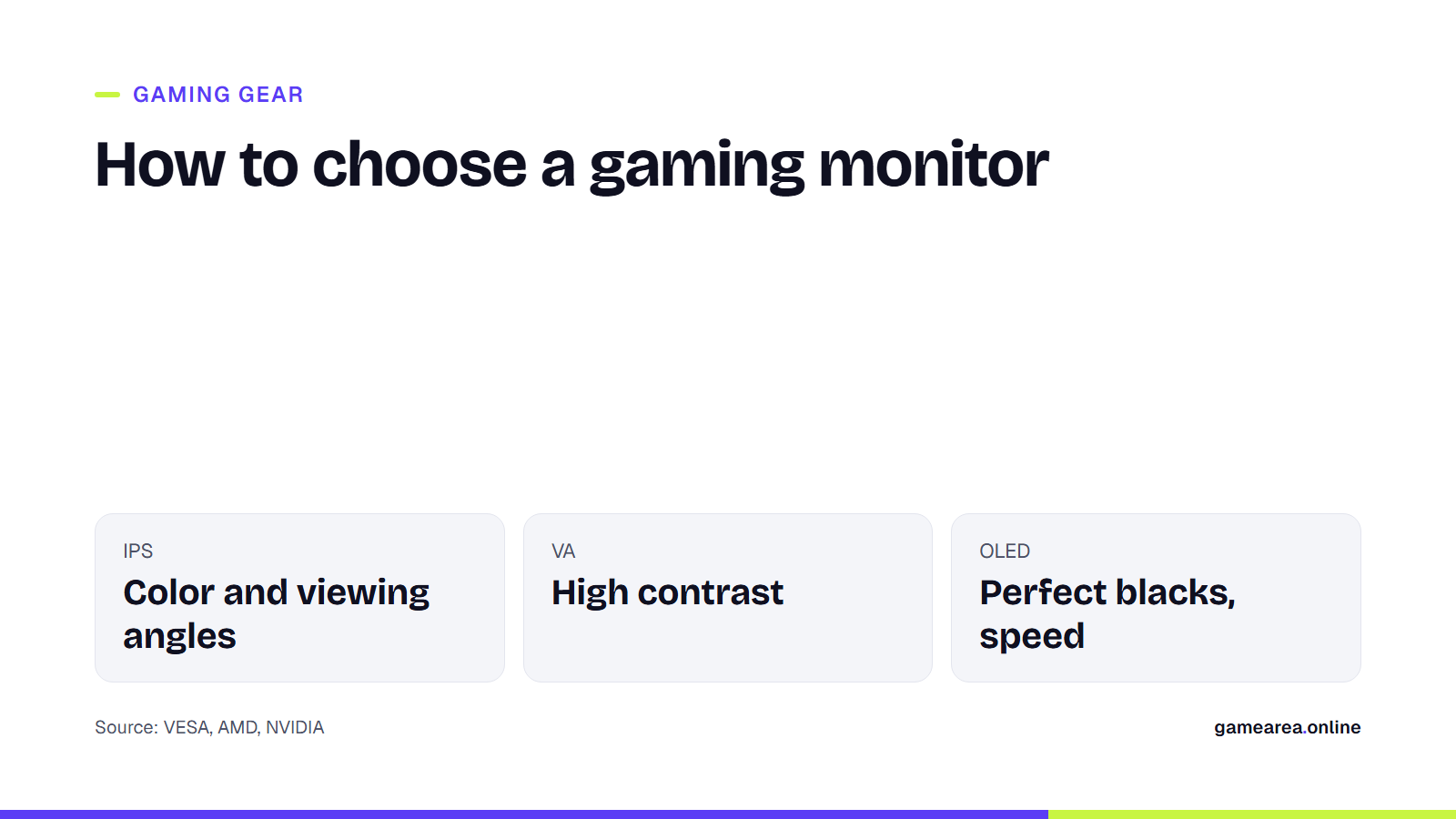
- IPS stands out for color and viewing angles, VA for contrast, and OLED for both contrast and response speed; OLED's weak points are burn-in risk and price.
- 1440p at 27 inches is the best balance between sharpness and graphics card load for most players.
- FreeSync and G-SYNC Compatible eliminate screen tearing; for HDR, only DisplayHDR 600 and above or the True Black labels promise a meaningful difference.
What refresh rate should you buy?
Refresh rate is how many times per second the monitor redraws the image. The higher it is, the shorter each frame stays on screen, which means motion looks smoother and the image responds faster when you move the mouse. Going from 60 Hz to 144 Hz is the jump players feel most clearly, because the time per frame is cut by more than half. Going from 144 to 240 Hz still brings a gain, but a smaller one; 360 and 480 Hz are for players who can reach very high frame rates in competitive shooters.
The critical point is this: a monitor cannot show more frames than the graphics card produces. If you get 90 frames in the games you play, a 240 Hz panel will not give you 240 Hz smoothness. So you need to choose the monitor based on the frame rate your graphics card can really deliver at that resolution. For story-driven games 120–165 Hz is more than enough; in competitive games, 240 Hz and above makes sense if your frame rate is high.
IPS, VA or OLED: which panel type is best for gaming?
Panel type determines color, contrast, viewing angles and motion clarity together. A rough breakdown looks like this:
| Panel | Strengths | What to watch for |
|---|---|---|
| IPS | Accurate colors, wide viewing angles, good motion clarity on fast models | Blacks can look gray in a dark room; possible backlight bleed in the corners |
| VA | High contrast, deeper blacks | Smearing can appear in transitions in dark scenes |
| TN | High refresh rate at a low price | Narrow viewing angles and weak colors; now rare |
| OLED | Per-pixel light: perfect blacks, very fast pixel response | Burn-in risk with interfaces that stay static for long periods, higher price |
| Source: manufacturer technical pages and VESA definitions; general trends that vary by model | ||
On OLED, the risk of burn-in rises when the same image stays on screen for hours. Manufacturers reduce that risk with protection features such as pixel shifting and panel refresh; warranty coverage varies by brand, so check whether burn-in is covered before you buy.
If it says "1 ms" response time, is it really 1 ms?
The response time on the box is usually the best value, measured at the most aggressive overdrive setting on the most favorable color transition. On some panels that setting leaves a light halo (inverse ghosting) behind moving objects. So the "1 ms" label on its own is not a reliable way to compare two monitors; looking at the gray-to-gray (GtG) measurements in independent reviews and at how the overdrive settings behave gives a more accurate picture. VESA's ClearMR certification also tries to fill this gap by rating motion blur with a ratio of clear to blurry pixels instead of a single number.
1080p, 1440p or 4K?
Resolution has to be considered together with screen size, because sharpness depends on pixels per inch (PPI). 1080p at 24 inches gives about 92 PPI, 1440p at 27 inches about 109 PPI, 4K at 27 inches about 163 PPI and 4K at 32 inches about 138 PPI. 1080p at 27 inches, on the other hand, makes the pixels visible in text and fine detail.
As resolution rises, the graphics card draws more pixels on every frame. 4K means 2.25 times the pixels of 1440p, so your frame rate drops noticeably with the same card. For players who want to compete at high refresh rates, 24–25 inch 1080p or 27 inch 1440p makes sense; for those who put image quality first, 27–32 inch 4K. Upscaling technologies such as DLSS, FSR and XeSS make 4K more accessible, but they depend on graphics card support.
What do the FreeSync, G-SYNC and HDR labels mean?
Variable refresh rate (VRR) lets the monitor adapt to the graphics card's frame rate; when the frame rate fluctuates, tearing and stutter disappear. AMD's FreeSync program has three tiers: basic FreeSync, FreeSync Premium with low framerate compensation (LFC), and FreeSync Premium Pro, which adds HDR requirements. Under AMD's current requirements, Premium needs at least 200 Hz on monitors with a horizontal resolution below 3440 pixels. On the NVIDIA side, the G-SYNC Compatible label marks monitors that do not use an NVIDIA processor but have passed NVIDIA's testing; G-SYNC and G-SYNC Ultimate involve extra hardware and stricter requirements.
The most common HDR trap is the DisplayHDR 400 label: because of low peak brightness and no local dimming, it often makes no clear difference over SDR. VESA's DisplayHDR 600 tiers and above, or the True Black tiers designed for OLEDs (400, 500, 600 and 1000), come closer to a real HDR experience; True Black requires a black level of 0.0005 cd/m². If you are buying a monitor for a console, an HDMI 2.1 connection also matters; we cover that in detail in our guide to choosing a TV for gaming.
Frequently asked questions
Can you feel the difference between 144 Hz and 240 Hz?
Yes, but it is not as big as the jump from 60 to 144. To feel it you need more than 200 frames in the game; otherwise the advantage of 240 Hz goes unused.
Do you need a curved monitor for gaming?
No. A curve is mostly useful on ultrawide monitors of 34 inches and above, where it brings the edges closer to your eyes; at 24–27 inches it gives no clear advantage.
Is an OLED monitor safe for gaming?
With a variety of games and changing content, the risk is low. If you play with the same interface for hours or also use the monitor for long stretches of desktop work, keep the burn-in risk in mind and check whether the warranty covers it.
Does a G-SYNC Compatible monitor work with an AMD graphics card?
These monitors usually use the VESA Adaptive-Sync standard, so they also offer variable refresh rate with AMD cards. For a definite answer, check the model's FreeSync support on the manufacturer's page.
Sources
- AMD — AMD FreeSync Technology Official source
- NVIDIA — G-SYNC Monitors Official source
- VESA — VESA DisplayHDR Official source
- Wikipedia — Computer monitor
How this content was prepared
Prepared with AI assistance from the sources listed, key facts checked against official sources, not copied verbatim. Our AI principles
GAMEAREA Editörlüğü